
Did you know that nearly 90% of computer problems can be solved with simple troubleshooting steps? Many users think computer issues are complicated, but most problems can be diagnosed and fixed with a methodical approach. Understanding what troubleshooting is, how it works, and which tools to use is essential for every computer user. This guide will walk you through everything you need to know, from types of problems to practical tips for solving them efficiently.
Read More: What Is a Supercomputer? The Astonishing Powerhouse Transforming Our Digital World
What is Troubleshooting in Computers?
Troubleshooting in computers is the process of identifying, analyzing, and fixing problems that prevent a system from working correctly. These problems may arise from hardware, software, network issues, or external devices. The primary goal of troubleshooting is to restore functionality quickly while minimizing downtime.
In simple terms, troubleshooting is like detective work: you observe symptoms, gather clues, identify the cause, and implement a solution. Whether you are dealing with a slow computer, a software crash, or a printer that won’t respond, troubleshooting allows you to solve issues step by step.
Importance of Troubleshooting
Troubleshooting is not just about fixing problems—it helps maintain the health of your computer and prevents small issues from turning into costly disasters. Here’s why it’s essential:
- Early Problem Identification: Detecting issues before they escalate can save your system from serious damage.
- Smooth Performance: Regular troubleshooting ensures your hardware and software run efficiently.
- Cost Savings: Avoiding professional repairs for minor problems saves money.
- Reduced Frustration: Knowing how to solve common issues reduces stress for users.
- Maintenance of System Health: Keeps both hardware and software functioning optimally.
Types of Computer Troubleshooting
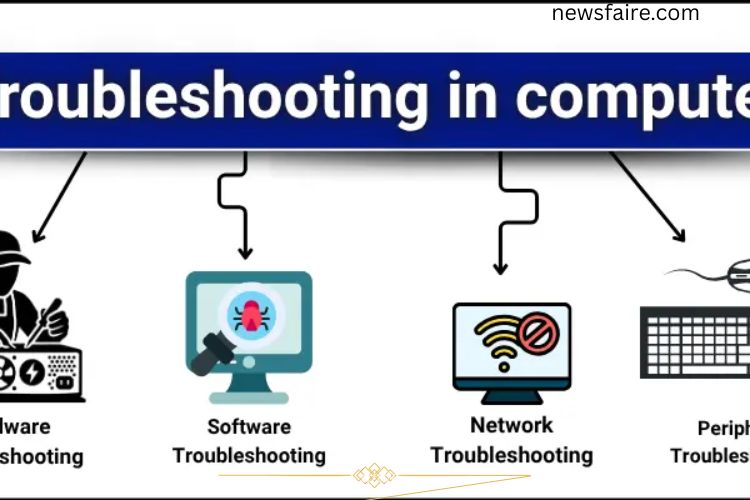
Computer problems can be broadly classified into four categories. Each type requires a different approach and set of solutions:
- Hardware Troubleshooting
- Software Troubleshooting
- Network Troubleshooting
- Peripheral Troubleshooting
Hardware Troubleshooting
Hardware troubleshooting deals with the physical components of a computer, such as the monitor, keyboard, mouse, RAM, hard drive, and motherboard. Physical issues can occur due to wear and tear, loose connections, or environmental factors like dust.
Common Steps in Hardware Troubleshooting:
- Inspect cables and connectors for damage or loose connections.
- Remove dust from internal components using compressed air.
- Test hardware by replacing components one at a time.
- Monitor error messages and beep codes during startup to identify faulty parts.
While minor hardware issues can be resolved by the user, serious problems may require professional repair or replacement.
Software Troubleshooting
Software issues often manifest as program crashes, system errors, slow performance, or virus infections. Software troubleshooting involves diagnosing these issues and taking corrective action to restore smooth operation.
Key Techniques:
- Update software and operating systems to the latest versions.
- Reinstall problematic applications.
- Scan for viruses and malware using trusted antivirus software.
- Check system logs for error messages that indicate software faults.
By addressing software problems promptly, you can prevent them from affecting other programs and maintain system stability.
Network Troubleshooting
Network problems, such as slow internet, connectivity failures, or LAN issues, can disrupt both work and entertainment. Network troubleshooting focuses on identifying the source of these problems.
Common Steps:
- Check physical connections, such as router cables and network ports.
- Restart your router or modem to refresh the connection.
- Run network diagnostics to detect IP or DNS conflicts.
- Use tools like Ping or Tracert to identify where the problem occurs along the network path.
Proper network troubleshooting ensures uninterrupted access to online resources and smooth communication across devices.
Peripheral Troubleshooting
Peripherals are external devices connected to your computer, such as printers, scanners, external hard drives, and USB devices. Problems may occur if these devices are not detected or fail to function properly.
Simple Fixes Include:
- Reconnecting or replacing cables.
- Restarting the computer after attaching a device.
- Updating or reinstalling device drivers.
- Checking device compatibility with the operating system.
Peripheral troubleshooting ensures that all additional hardware works seamlessly with your system.
Steps in Troubleshooting
Troubleshooting is most effective when approached methodically. Following these steps can save time and prevent unnecessary effort:
- Identify the Problem: Observe what is not working and note any error messages.
- Gather Information: Determine when the problem started and under what conditions it occurs.
- Analyze the Cause: Decide if the issue is hardware, software, network, or peripheral-related.
- Apply a Solution: Try practical fixes, from restarting the computer to updating software or reconnecting hardware.
- Test the Solution: Verify that the issue is resolved and the system functions properly.
- Document the Fix: Keep a record of the steps you took. This helps in case the problem recurs.
Common Troubleshooting Techniques
Effective troubleshooting uses both basic and advanced techniques to quickly resolve issues:
Basic Techniques:
- Restart your computer to refresh processes.
- Check cables and power connections.
- Close unnecessary programs to free system resources.
- Verify that devices are powered on and functioning.
Advanced Techniques:
- Update drivers and software.
- Run antivirus and malware scans.
- Use built-in system tools like Disk Check or Windows Troubleshooter.
- Examine system settings for errors and conflicts.
By combining these approaches, users can resolve most common issues without external help.
Tools for Troubleshooting
Various tools make troubleshooting faster and more accurate. These tools can be built-in or third-party, depending on your needs.
Built-in Tools:
- Windows Troubleshooter: Automatically fixes many common problems.
- Disk Check: Scans and repairs hard drive errors.
- Event Viewer: Provides detailed error messages and logs.
- Device Manager: Checks hardware status and updates drivers.
Third-Party Tools:
- CCleaner: Cleans junk files and optimizes performance.
- Malwarebytes: Detects and removes malware.
- Speccy: Gives detailed information about your hardware components.
Network Tools:
- Ping: Checks connectivity with other devices.
- Tracert: Locates where network delays or failures occur.
- Wireshark (basic use): Analyzes network traffic for errors.
These tools simplify troubleshooting, reduce guesswork, and save time.
Troubleshooting Tips
For beginners or casual users, keeping a few practical tips in mind can make troubleshooting easier:
- Always back up your data before making major changes.
- Start with simple solutions, like restarting the computer.
- Maintain a checklist of common problems and their fixes.
- Carefully read error messages—they often provide clues.
- Stay calm and patient; frustration can lead to mistakes.
Examples of Troubleshooting
Seeing practical examples makes troubleshooting easier to understand. Here are common scenarios:
- Computer not turning on: Check the power cable and switch.
- Slow performance: Close extra programs or remove unnecessary files.
- No sound: Verify speakers are connected and not muted.
- Printer not working: Reconnect the printer or reinstall its driver.
- Internet connection issues: Restart the router or check Wi-Fi settings.
- Screen freezing: Restart the computer or update software.
These examples demonstrate that most computer problems have straightforward solutions.
Frequently Asked Questions:
What is computer troubleshooting?
Computer troubleshooting is the process of identifying, diagnosing, and resolving problems that prevent a computer or its components from functioning properly. It includes both hardware and software issues.
Why is troubleshooting important for computer users?
Troubleshooting helps save time, reduce frustration, prevent costly repairs, and keep your computer running efficiently.
What are the main types of computer troubleshooting?
The main types include hardware troubleshooting, software troubleshooting, network troubleshooting, and peripheral troubleshooting.
Can I troubleshoot my computer without technical expertise?
Yes. Many common problems can be solved using basic steps like restarting the system, checking connections, or using built-in troubleshooting tools.
How can I troubleshoot network or internet problems?
Start by checking cables, restarting your router or modem, running network diagnostics, or using tools like Ping and Tracert to locate the issue.
What are some common software issues that need troubleshooting?
Examples include application crashes, system slowdowns, virus infections, outdated software, and conflicting programs.
Which tools are most useful for troubleshooting?
Built-in tools like Windows Troubleshooter, Disk Check, Device Manager, Event Viewer, and third-party tools like CCleaner, Malwarebytes, and Speccy are highly effective.
Conclusion
Mastering computer troubleshooting is a vital skill for anyone who uses technology regularly. By understanding how to identify, analyze, and resolve problems, you can prevent small issues from turning into costly or frustrating setbacks. From hardware failures and software glitches to network disruptions and peripheral malfunctions, troubleshooting equips you with the tools and techniques to tackle problems efficiently and confidently. With a methodical approach, the right tools, and practical tips, troubleshooting becomes more than just fixing errors—it’s about maintaining a smooth, reliable, and high-performing system. Whether you are a beginner or an experienced user, practicing these strategies helps save time, reduce stress, and extend the lifespan of your computer.