
Many users feel frustrated when their keyboard, printer, or speaker stops working unexpectedly. Often, this happens because device drivers are missing, outdated, or improperly installed. Device drivers are essential programs that allow your computer to communicate effectively with hardware, ensuring smooth operation and optimal performance. In this guide, we’ll explore what device drivers are, how they work, the types available, and how to install them effortlessly.
Read More: Unlock Your Future: Top High-Demand Computer Courses Every Beginner Must Master
What Are Device Drivers?
A device driver is a small but critical program that enables your computer to interact with hardware such as keyboards, printers, or monitors. Think of it as a translator: it converts instructions from your computer into a language the hardware understands. Without a driver, your computer cannot properly control or access the connected device. Drivers ensure devices operate smoothly, and they are automatically installed when you connect new hardware or can be manually updated for improved performance.
How Device Drivers Work
Device drivers act as a bridge between your operating system and hardware. They run in the background, translating commands so devices can perform tasks accurately.
Step-by-Step Process:
- You give a command, like printing a document or playing audio.
- The operating system sends this command to the device driver.
- The driver translates it into a format the hardware can understand.
- The device executes the command.
- The driver sends feedback to the system if needed.
Drivers ensure that every instruction reaches the correct hardware component, maintaining efficiency and preventing errors.
Modes of Device Drivers
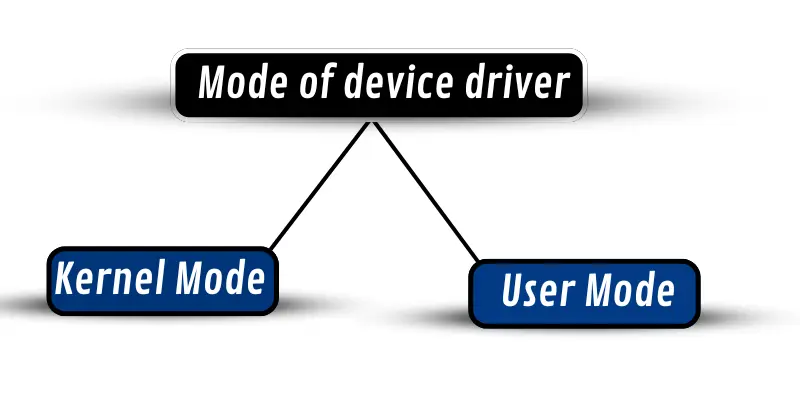
Device drivers operate in two primary modes:
- Kernel Mode: Offers full access to system resources and hardware. It’s faster but less forgiving—errors can crash the system.
- User Mode: Provides limited system access. It’s safer but slower, making it ideal for applications where stability is critical.
Types of Device Drivers
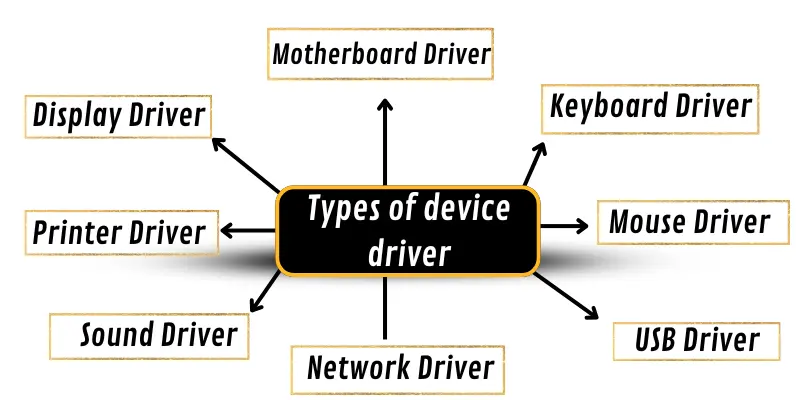
Device drivers are tailored to specific hardware. Understanding these types helps troubleshoot issues and optimize your system.
Keyboard Driver
The keyboard driver interprets keystrokes and sends the corresponding signals to the computer. It ensures the correct characters or functions appear when you type. Without it, the keyboard cannot function correctly.
Mouse Driver
Mouse drivers translate movement and clicks into cursor actions on the screen. They allow precise pointer movement and ensure all button actions are registered. A missing or faulty mouse driver can make your mouse unresponsive.
Printer Driver
A printer driver converts digital documents into a format the printer can process. It tells the printer how to produce text, images, or graphics accurately. Without it, printing tasks fail or produce errors.
Display Driver
Display drivers control how graphics, text, and videos appear on your monitor. They ensure smooth rendering and optimal resolution. Missing or outdated display drivers can cause screen flickering or incorrect resolutions.
Sound Driver
Sound drivers manage audio output, allowing your computer to send music, videos, or alerts to speakers or headphones. Without a sound driver, your system cannot produce audio correctly.
Network Driver
Network drivers enable internet or local network connections through Ethernet or Wi-Fi. They allow the computer to send and receive data and communicate with routers or other network devices.
USB Driver
USB drivers help your system recognize and interact with devices connected via USB ports, such as flash drives, cameras, or external hard drives. Without them, USB devices may not work at all.
Motherboard Driver
Motherboard drivers facilitate communication between the motherboard and components like the CPU, RAM, and expansion cards. They ensure your computer’s core components function in harmony.
Advantages and Disadvantages of Device Drivers
While device drivers are essential, understanding their benefits and drawbacks helps maintain system stability.
Advantages:
- Enable hardware to work correctly with the computer.
- Improve device performance and responsiveness.
- Facilitate communication between software and hardware.
- Support the installation of new devices.
- Allow seamless system updates.
Disadvantages:
- Outdated drivers can cause system errors or crashes.
- Faulty drivers may destabilize the system.
- Regular updates are necessary.
- Managing drivers can be challenging for beginners.
How to Install a Device Driver
Installing a driver is straightforward when you follow these steps:
- Identify the Device: Check which device requires a driver, such as a printer or USB peripheral.
- Verify Existing Drivers: Ensure the computer does not already have the driver installed.
- Download the Driver: Visit the manufacturer’s official website and select the correct driver for your operating system.
- Install the Driver: Run the downloaded file and follow on-screen instructions.
- Restart and Test: Restart your computer and verify that the device functions properly.
Using this process ensures compatibility and reduces errors caused by outdated or incorrect drivers.
Frequently Asked Questions:
What is a device driver and why is it important?
A device driver is a small program that allows your computer to communicate with hardware devices like printers, keyboards, or graphics cards. It ensures proper functionality and smooth performance of your devices.
How do I know if a device driver needs updating?
Symptoms of outdated drivers include hardware malfunctions, slow performance, system errors, or error messages. You can check the device manager or use manufacturer tools to find updates.
Can I install device drivers manually?
Yes. You can download drivers from the hardware manufacturer’s website and follow installation instructions. Manual installation ensures compatibility with your operating system.
Are all device drivers necessary for my computer?
Core drivers like motherboard, display, network, and sound are essential. Optional drivers, such as for peripheral devices, may not be critical but improve functionality.
What happens if a device driver is corrupted or missing?
A corrupted or missing driver can prevent the device from working properly, cause errors, or even destabilize your system. Reinstalling or updating the driver usually fixes the issue.
Can updating device drivers improve system performance?
Yes. Updated drivers can enhance device functionality, reduce errors, improve speed, and provide better compatibility with new hardware or software.
How do device drivers work with operating systems?
Drivers act as a bridge between the operating system and hardware, translating commands from software into instructions that the device can understand and execute.
Conclusion
Device drivers are the backbone of smooth hardware performance. They enable your computer to communicate seamlessly with devices like keyboards, printers, graphics cards, and USB peripherals. Without proper drivers, even the most advanced hardware cannot function correctly. By understanding how drivers work, knowing the different types, and keeping them updated, you can prevent system errors, enhance performance, and ensure a reliable computing experience.